Posts

Showing posts with the label EXCEL

How to Extract Data From HTML (.aspx) website into Excel using VBA
Image
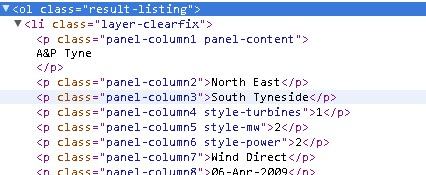
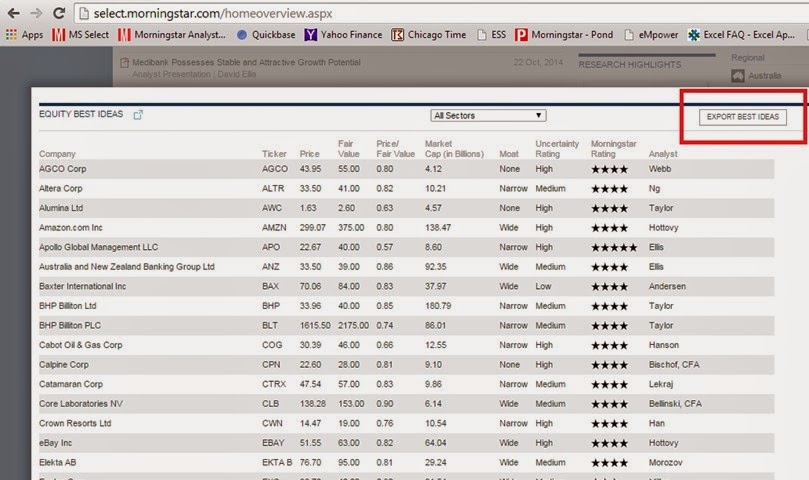
In this example I used the following VBA code to extract the data stored in a script variable. You can see the example data from an HTML file at the end of this post. Below is the snapshot of the page that I was trying to extract data from. VBA CODE: '******************************************************** ' DESCRIPTION: GET DATA FROM TABLE OF A .ASPX WEBSITE ' BY: CROMWELL D. BAYON ' EMAIL: OMELSOFT@GMAIL.COM '******************************************************** Sub GetOfflineData() Dim file As String, Data As String Dim delimQ As String Dim lineContentLoc As Long delimQ = Chr(34) file = Application.ActiveWorkbook.Path & "\Source of Select.html" Open file For Input As #1 Do Until EOF(1) Line Input #1, linefromfile 'Check only the line containing this pattern (var best_idear_data =[) If InStr(1, linefromfile, "var best_idear_data =[...

Count number of occurrence in a string using Excel VBA.

The following code snippet allows you to get the number of text occurrences in a string using VBA in Excel. Function StringCountOccurrences(strText As String, strFind As String, _                                 Optional lngCompare As VbCompareMethod) As Long Dim lngPos As Long Dim lngTemp As Long Dim lngCount As Long     If Len(strText) = 0 Then Exit Function     If Len(strFind) = 0 Then Exit Function     lngPos = 1     Do         lngPos = InStr(lngPos, strText, strFind, lngCompare)         lngTemp = lngPos         If lngPos > 0 Then             lngCount = lngCount + 1             lngPos = lngPos + Len(strFind)         End If     Loop Until lngPos = 0     StringCountOccurrences = lngCount End Functi...

Commonly Used VBA Statements for Excel VBA Programming

Image
The following table shows a list of commonly used VBA statements that might be useful when creating macros for your Excel projects. To know more information about each statement, consult Excel’s Help system by pressing "F1".

Remove and Replace All Characters in Microsoft Excel using VBA

The following FindandReplace() function allows you to replace or remove specific text and characters you want in Microsoft Excel. Just copy the code below on your VBA code class or module. Sub FindandReplace(FindWhat as String, ReplaceWith as String)         Cells.Replace What:=FindWhat, Replacement:=ReplaceWith, LookAt:=xlPart, SearchOrder:= _         xlByRows, MatchCase:=False, SearchFormat:=False, ReplaceFormat:=False End Sub Put this in your Sub or Function. To Replace several text with new text. FindandReplace "OldText", "NewText" To remove several text just leave the second argument blank. FindandReplace "OldText", ""

How to Get the Count of Filtered Sets of Data Rows in Excel using VBA

Image
The following function below allows you to get the number of visible rows from a filtered sets of rows in Excel using VBA. The function takes two arguments which is the Column and StartRow. Calling the FilterCount() function returns the number of visible rows. Also added an error handler which process the error description to determine if there's a visible row. Parameters: Column : The column of the data to be filtered. If you have multiple columns being filtered you can just set the first Column or any column in the dataset.         StartRow : Start row of the data to be filtered. Function FilterCount(ByVal Column As String, ByVal StartRow As Long) As Long     On Error GoTo errHandler       FilterCount = Application.WorksheetFunction.CountA(ActiveSheet.Range(Column & StartRow, Cells(ActiveSheet.UsedRange.Rows.Count, Range(Column & StartRow).Column)).SpecialCells(xlCellTypeVisible))     'Debug.Print FilterC...

How to Copy Only the Visible Rows of a Filtered Data in Excel using VBA

Image
You might be working on a project where you need to filter sets of data and create a raw data of that filtered sets of data to a new sheet or range. By default, Excel copies hidden or filtered cells in addition to visible cells. If some cells, rows, or columns on your worksheet are not displayed, you have the option of copying all cells or only the visible cells.  The following snippet allows you to automate the process in microseconds. [ VBA ] Public Function GetFilteredData() Dim rawWs As Worksheet 'RAW DATA WORKSHEET Dim tarWs As Worksheet 'TARGET WORKSHEET 'Replace this with your actual Worksheets Set rawWs = Sheets("Raw Data") Set tarWs = Sheets("Filtered Data Visualizations") Application.ScreenUpdating = False 'Clear old contents of the Target Worksheet tarWs.Range("A2:N" & Rows.Count).ClearContents '****************************************...

How to Get the Addresses of Visible Rows from a Filtered Data in Excel using VBA

Image
The following function allows you to get the Address of each visible rows from a filtered sets of data in Excel using VBA. [ VBA ] Dim FilteredRows as Variant Public Function GetFilteredRows(Optional ByVal RowPrefixed As Boolean) Dim Rng As Range, rngF As Range, rngVal As Range 'Ranges Dim val As Variant 'Range Value Dim i As Integer 'Counter Dim lRow as long 'Last Row Application.ScreenUpdating = False Sheets("Raw Data").Select lRow = WorksheetFunction.CountA(Range("A:A")) 'Set the range of all visible cells of the filtered data Set rngF = Range("A2", Cells(ActiveSheet.UsedRange.Rows.Count, _ Range("A2").Column)).SpecialCells(xlCellTypeVisible) For Each Rng In Range("$A2:$A$" & lRow) If Not Intersect(Rng, rngF) Is Nothing Then If rngVal Is Nothing Then Set rngVal = Rng Else ...

How to Suppress Warning and Alerts in Excel using VBA

Image
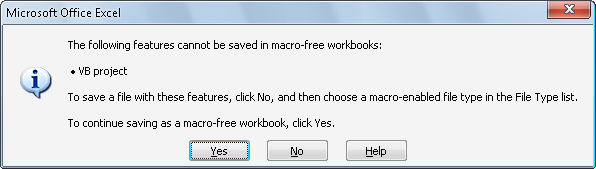
In Microsoft Excel, you can suppress the message warning and alerts especially when you try to create a copy of a worksheet from a workbook containing macros to a new workbook which you wanted to save it as .xls or .xlsx extensions. By that, when you save the document it will prompt you to whether save the work as macro-enabled or macro-free workbook. You can do that by setting DisplayAlerts to False with VBA code. Application.DisplayAlerts = False 'DO SOME TASKS HERE Application.DisplayAlerts = True

How to Create a Custom Checkbox using only the Cells in Microsoft Excel

Image
You might be creating templates with Microsoft Excel, and one of the feature you want is add a check boxes control where users can choose their option.  We'll, if you want to have another look aside from the default check box control. You can still create and customize your check box controls with a little VBA code to get it done. In this example, I have here choices for the reason of a leave application form. I make use of the Microsoft Excel's Cell as a check box. It's just a matter of resizing the rows and columns to make the size of the cell equal.  1.)  Now, let's create first the list of choices, as you can see below I've resized the cells and add borders on the cells which we'll set as a check-cell box control. 2.)  Right Click on the Worksheet, then Click " View Code ". 3.)  Then Copy and Paste the following codes below into the code editor window. The following code will set the Target Range of when the Check-Cell box will be...

Using Named Ranges in Microsoft Excel

Image
Named Ranges in Excel enable you to give one, or a group of cells a name other than the default B4 for a single cell, or B2:E20 for a range of cells. So that you can refer to them in formulas using that name. You can view the complete tutorial here How to Use Named Ranges in Microsoft Excel  . When using Named Ranges there are also set of rules which you need to know like the scope where you can use the specified named range. If it's within only a single worksheet or the entire workbook. Check this out Named Range Rules  and be totally aware of the do's and don'ts when using this functions. Managing Your Named Ranges There'll come a time when you want to edit or delete a Named Range. To do this access the Name Manager on the Formulas tab of the ribbon. The Name Manager Dialog box will open. From here you can Edit and Delete your Named Ranges, or even create new ones. Remember, once you delete a name you cannot undo that action. Different uses fo...

Scrape Website Data into Excel using VBA

Image
I'll be showing you an example on how to Scrape Data from a Website into Excel Worksheet using VBA. We'll be scraping data from www(dot)renewableuk(dot)com. Please also read the privacy policy of the website before mining data. Goal: Get all data under all column headings which can be found on this website i.e. Wind Project, Region, ..., Type of Project Requirements: You need to add a reference, Microsoft HTML Object Library on your VBA project. Usage: You can call the ProcessWeb() sub directly by pressing F5 on the Microsoft Visual Basic Window. Or you can add a button on your excel worksheet then assign ProcessWeb() as the macro. VBA CODE: Function ScrapeWebPage(ByVal URL As String) Dim HTMLDoc As New HTMLDocument Dim tmpDoc As New HTMLDocument Dim i As Integer, row As Integer Dim WS As Worksheet Set WS = Sheets("DATA") 'create new XMLHTTP Object Set XMLHttpRequest = CreateObject("MSXML2.X...

Send Email with Excel VBA via CDO through GMail

Image
If you're working on a project or having a numerous reports in excel to be sent out to your boss or clients. And what you usually do is save the workbook, compose a new email, copy the contents or attach it on your email client. That's a time consuming task! What we wanted to do is automate the tasks from within the Excel Workbook you're working with. The SendEmail() Function below will do the task for you. Function Definition: Function SendEmail(ByVal Username As String, _                    ByVal Password As String, _                    ByVal ToAddress As String, _                    ByVal Subject As String, _                    ByVal HTMLMessage As String, _                    ByVal SMTPServer As String, _       ...

The Commonly Used Excel Functions

Image
Some Excel functions may apply to specific subject areas, while others are general and can be applied to all needs. The following shows a list of Excel Functions commonly used by everyone.

Change/Remove the Password of a Password-Protected VBA Project in Microsoft Excel

Image
Some Excel VBA developers are protecting their codes and modules with password in order not to let others view the content of their project. It's okay to open these files if you really knew the purpose of the project. But, what if you're in a company having bundles of confidential information that you're not allowed to divulge to any other parties and the Macro runs Malicious Codes to obtain such information. Or in worst cases, can also be used to spread viruses over the network you're connected with. One day, you might have received an email from a friend with an excel file attachment containing macros in it. And you are told to open it because He/She has a data that needs to show to you. And when you open it, suddenly you're system got compromised. So if you have the basic understanding with the programming language (VBA), then you might want to know what are the codes and applications are running when you open the excel file. But that doesn't end there! ...

How to set a Password on your Excel VBA Project

Image
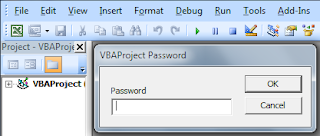
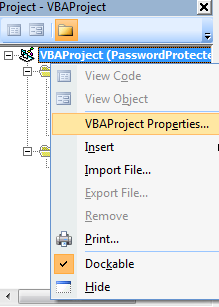
Now, for those who don't know yet How to Set a Password on your VBA Project in Excel. The guide below might be of help to you. 1. On the VBA Project Explorer . Right Click on the VBAProject(Filename.xls) on the uppermost part of the explorer. 2. On the Menu , Click VBAProject Properties . And the Project Properties window will show up. 3. On the Project Properties , Check the box Lock project for viewing . And Type and Confirm your password. Then Click OK. 4. Finally, Save and close the project as well as the workbook. When you re-open the project it should prompt you to enter the password.

How to Enable and Disable Macros in Microsoft Excel

Image
While most macros are harmless and helpful when it comes to automating repetitive tasks. It also poses a security risks if it's coded with malicious purpose. It can contain unsafe codes that can be harmful when ran on your systems.  Do make sure that you run macros that you own or from known sources and trusted publishers.  To enable or disable and set macro security level in any office application that has VBA macros, Open the Developer tab or See How to show Developer tab in Ribbon . Open up the Trust Center dialog window by clicking the macro security button on the developer tab or press ( Alt+LAS ) on your keyboard. The Macro settings tab on trust center dialog window has additional option buttons you can select to change macro level security. Disable all macros without notification - Select this option when you don't want to run all macros from unknown sources and untrusted publisher's location. D isable all macros with not...

How to show the Developer Tab in Microsoft Excel 2007

Image
By default, the Developer Tab is not shown on the Microsoft Excel's Ribbon. In order to show the Developer tab, Go to the File Menu and Click the Excel Options button.   On the Excel Options Window, Check the box Show Developer tab in the Ribbon .   Then Click OK, and that should show up the Developer tab.

The Ultimate Annual-Monthly Microsoft Excel Calendar template

Image
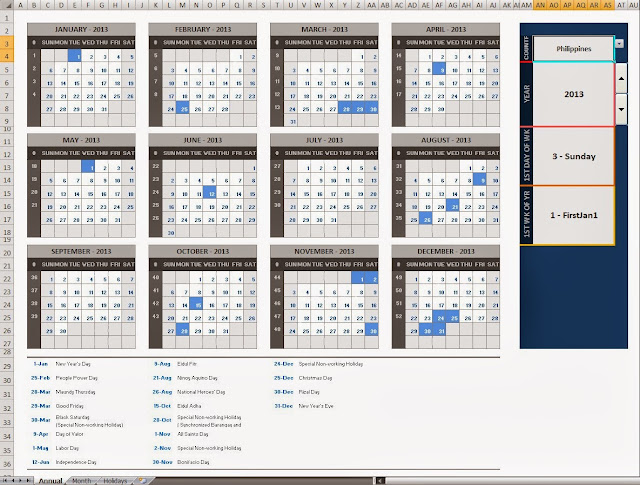
This Ultimate Excel Calendar Template allows user, company or any organization to create their own calendars. The template was created in VBA and may require the user to enable macro content in the document. Annual Calendar Template: Country - Choose your home country. Year - Calendar year First Day of the Week - The first day of the week to be displayed First Week of The Year - Determines the work week number The screenshot below shows the calendar of the whole year and the holidays. The video shows how does Ultimate Excel Calendar template work. Monthly Calendar Template: Month - Choose which Month you want to display. Year - Month year. First Day of Week -  First day of the week to be displayed. Country - Choose your location This template will display the Holiday of the Month in the respective dates. Download the Ultimate Annual-Monthly Excel Calendar or post your email in the comment so I can send to you the template file.

Using Nested IFError - IF - VLookUp Functions in Excel

Image
In this example we'll be using three excel functions such as IFERROR , IF and VLOOKUP functions.  =IFERROR(IF(G3="","",VLOOKUP(G3,Sheet1!B:C,2,FALSE)), "No Match Found") For this example, we'll use the above formula at Cell "G4" : Initially, the formula says that if the value of G3 is blank then set the value of G4 to blank. Otherwise, look for the lookup value ( ID )  in the table array and return the exact match in the second column ( Name ) . If the value is not found in the array then return a message to the user.   IFERROR( 'Formula to Evaluate', value-if-error ) - Returns the specified value "No Match Found" if the formula evaluated returns an error value.   IF( logical_test, [value_if_true], [value_if_false] ) - Logic test is a comparison between two values ( G3="" ), test's if the value of G3 is empty. Followed by two arguments which are the value_if_true and v...

Excel VLOOKUP Function Tutorial

Image
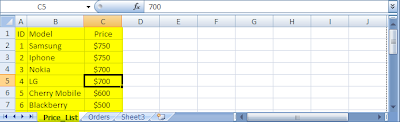
The following example will give you an idea on how to use VLOOKUP in Microsoft Excel. If you're working with an excel database and want it to be dynamic the VLOOKUP/HLOOKUP functions are very useful for you. The VLOOKUP function looks up value in columns while HLOOKUP does in rows.  This example has two sheets "Price_List" and "Orders" for mobile brands. *Note: The values given are not the actual market prices. The "Price_List" sheet has three columns ID, Model and Price. This is where we'll be looking up the prices value for every orders made. Now, on the orders tab we have 3 orders made. We'll add the VLOOKUP function in the Total Price formula. This formula "=VLOOKUP(B2,Price_List!B1:C7,2,FALSE)" will LOOKUP for the price of the unit brand in the Price_List Sheet. =IF(C2<>"",VLOOKUP(B2,Price_List!B1:C7,2,FALSE) *C2,VLOOKUP(B2,Price_List!B1:C7,2,FALSE)) The formula above is a  logical cond...