Posts

Showing posts with the label VBA

How to Extract Data From HTML (.aspx) website into Excel using VBA
Image
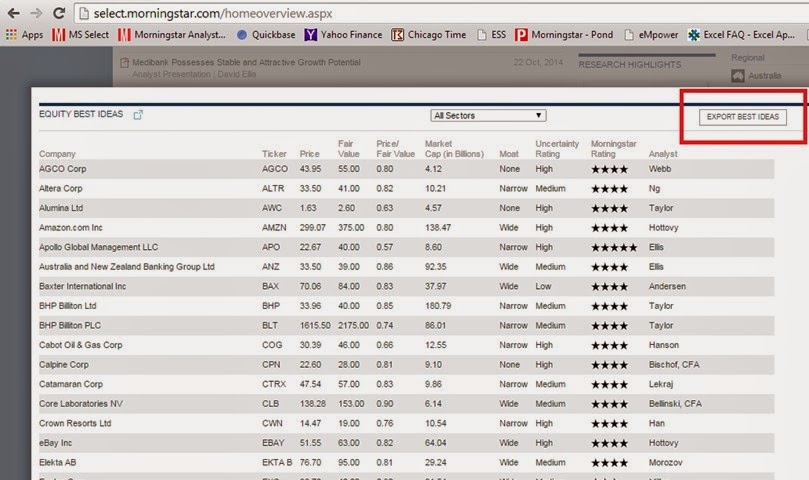
In this example I used the following VBA code to extract the data stored in a script variable. You can see the example data from an HTML file at the end of this post. Below is the snapshot of the page that I was trying to extract data from. VBA CODE: '******************************************************** ' DESCRIPTION: GET DATA FROM TABLE OF A .ASPX WEBSITE ' BY: CROMWELL D. BAYON ' EMAIL: OMELSOFT@GMAIL.COM '******************************************************** Sub GetOfflineData() Dim file As String, Data As String Dim delimQ As String Dim lineContentLoc As Long delimQ = Chr(34) file = Application.ActiveWorkbook.Path & "\Source of Select.html" Open file For Input As #1 Do Until EOF(1) Line Input #1, linefromfile 'Check only the line containing this pattern (var best_idear_data =[) If InStr(1, linefromfile, "var best_idear_data =[...

Count number of occurrence in a string using Excel VBA.

The following code snippet allows you to get the number of text occurrences in a string using VBA in Excel. Function StringCountOccurrences(strText As String, strFind As String, _                                 Optional lngCompare As VbCompareMethod) As Long Dim lngPos As Long Dim lngTemp As Long Dim lngCount As Long     If Len(strText) = 0 Then Exit Function     If Len(strFind) = 0 Then Exit Function     lngPos = 1     Do         lngPos = InStr(lngPos, strText, strFind, lngCompare)         lngTemp = lngPos         If lngPos > 0 Then             lngCount = lngCount + 1             lngPos = lngPos + Len(strFind)         End If     Loop Until lngPos = 0     StringCountOccurrences = lngCount End Functi...

Commonly Used VBA Statements for Excel VBA Programming

Image
The following table shows a list of commonly used VBA statements that might be useful when creating macros for your Excel projects. To know more information about each statement, consult Excel’s Help system by pressing "F1".

Remove and Replace All Characters in Microsoft Excel using VBA

The following FindandReplace() function allows you to replace or remove specific text and characters you want in Microsoft Excel. Just copy the code below on your VBA code class or module. Sub FindandReplace(FindWhat as String, ReplaceWith as String)         Cells.Replace What:=FindWhat, Replacement:=ReplaceWith, LookAt:=xlPart, SearchOrder:= _         xlByRows, MatchCase:=False, SearchFormat:=False, ReplaceFormat:=False End Sub Put this in your Sub or Function. To Replace several text with new text. FindandReplace "OldText", "NewText" To remove several text just leave the second argument blank. FindandReplace "OldText", ""

How to Get the Count of Filtered Sets of Data Rows in Excel using VBA

Image
The following function below allows you to get the number of visible rows from a filtered sets of rows in Excel using VBA. The function takes two arguments which is the Column and StartRow. Calling the FilterCount() function returns the number of visible rows. Also added an error handler which process the error description to determine if there's a visible row. Parameters: Column : The column of the data to be filtered. If you have multiple columns being filtered you can just set the first Column or any column in the dataset.         StartRow : Start row of the data to be filtered. Function FilterCount(ByVal Column As String, ByVal StartRow As Long) As Long     On Error GoTo errHandler       FilterCount = Application.WorksheetFunction.CountA(ActiveSheet.Range(Column & StartRow, Cells(ActiveSheet.UsedRange.Rows.Count, Range(Column & StartRow).Column)).SpecialCells(xlCellTypeVisible))     'Debug.Print FilterC...

How to Copy Only the Visible Rows of a Filtered Data in Excel using VBA

Image
You might be working on a project where you need to filter sets of data and create a raw data of that filtered sets of data to a new sheet or range. By default, Excel copies hidden or filtered cells in addition to visible cells. If some cells, rows, or columns on your worksheet are not displayed, you have the option of copying all cells or only the visible cells.  The following snippet allows you to automate the process in microseconds. [ VBA ] Public Function GetFilteredData() Dim rawWs As Worksheet 'RAW DATA WORKSHEET Dim tarWs As Worksheet 'TARGET WORKSHEET 'Replace this with your actual Worksheets Set rawWs = Sheets("Raw Data") Set tarWs = Sheets("Filtered Data Visualizations") Application.ScreenUpdating = False 'Clear old contents of the Target Worksheet tarWs.Range("A2:N" & Rows.Count).ClearContents '****************************************...

How to Get the Addresses of Visible Rows from a Filtered Data in Excel using VBA

Image
The following function allows you to get the Address of each visible rows from a filtered sets of data in Excel using VBA. [ VBA ] Dim FilteredRows as Variant Public Function GetFilteredRows(Optional ByVal RowPrefixed As Boolean) Dim Rng As Range, rngF As Range, rngVal As Range 'Ranges Dim val As Variant 'Range Value Dim i As Integer 'Counter Dim lRow as long 'Last Row Application.ScreenUpdating = False Sheets("Raw Data").Select lRow = WorksheetFunction.CountA(Range("A:A")) 'Set the range of all visible cells of the filtered data Set rngF = Range("A2", Cells(ActiveSheet.UsedRange.Rows.Count, _ Range("A2").Column)).SpecialCells(xlCellTypeVisible) For Each Rng In Range("$A2:$A$" & lRow) If Not Intersect(Rng, rngF) Is Nothing Then If rngVal Is Nothing Then Set rngVal = Rng Else ...

How to Suppress Warning and Alerts in Excel using VBA

Image
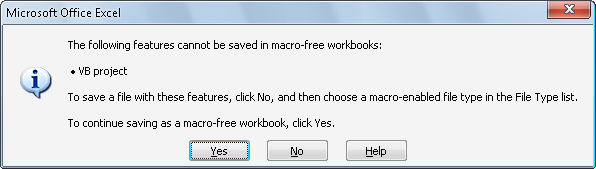
In Microsoft Excel, you can suppress the message warning and alerts especially when you try to create a copy of a worksheet from a workbook containing macros to a new workbook which you wanted to save it as .xls or .xlsx extensions. By that, when you save the document it will prompt you to whether save the work as macro-enabled or macro-free workbook. You can do that by setting DisplayAlerts to False with VBA code. Application.DisplayAlerts = False 'DO SOME TASKS HERE Application.DisplayAlerts = True

Send Email with Excel VBA via CDO through GMail

Image
If you're working on a project or having a numerous reports in excel to be sent out to your boss or clients. And what you usually do is save the workbook, compose a new email, copy the contents or attach it on your email client. That's a time consuming task! What we wanted to do is automate the tasks from within the Excel Workbook you're working with. The SendEmail() Function below will do the task for you. Function Definition: Function SendEmail(ByVal Username As String, _                    ByVal Password As String, _                    ByVal ToAddress As String, _                    ByVal Subject As String, _                    ByVal HTMLMessage As String, _                    ByVal SMTPServer As String, _       ...